Admin
Admin
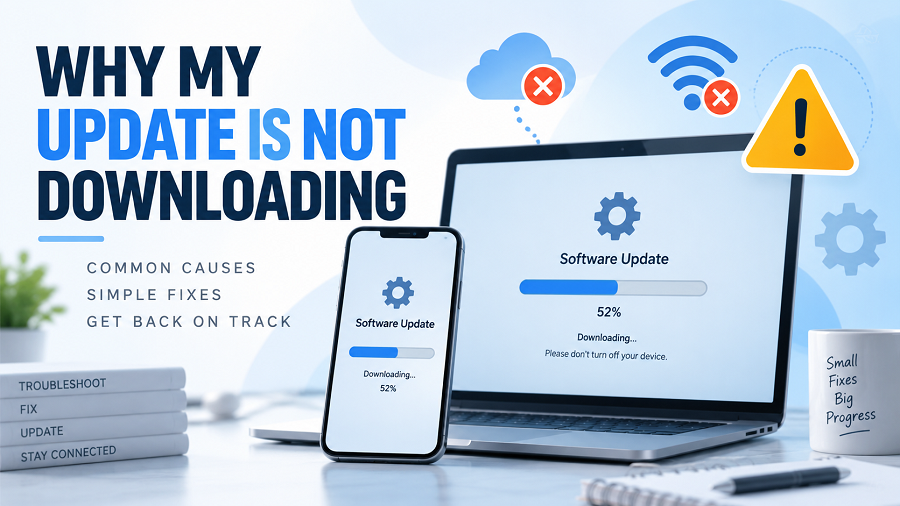
Software updates are important because they improve security, add new features, fix bugs, and improve device performance. However, many users experience a frustrating problem: an update starts downloading but suddenly stops, stays at 0%, shows an error, or never finishes.
If you are searching for “why my update is not downloading,” the problem can occur for several reasons, including a poor internet connection, insufficient storage, software conflicts, outdated services, or temporary server issues.
The good news is that most update download issues can be fixed with a few simple troubleshooting steps.
This guide explains why updates fail and how to download them successfully.
Key Takeaways
- A weak or unstable internet connection is one of the most common reasons updates fail.
- Low storage space can prevent updates from downloading or installing.
- Restarting your device can fix temporary update problems.
- Clearing the cache and checking update settings can solve many app update issues.
- Windows users can use the built-in Windows Update troubleshooter.
- If nothing works, manual updates or professional support may be required.
Why Is My Update Not Downloading?
There is no single reason why an update refuses to download. Different devices and platforms have different causes.
Some common reasons include:
| Slow internet | Download stops or becomes extremely slow |
| Low storage | Device cannot save update files |
| Server problems | Update service may be temporarily unavailable |
| Battery restrictions | Some devices pause updates to save power |
| Software conflicts | Security apps or system errors block downloads |
| Outdated settings | Incorrect update preferences prevent downloads |
Check Your Internet Connection
A stable internet connection is required for most software updates.
If your Wi-Fi keeps disconnecting or your mobile data is slow, the update may remain stuck or fail completely.
What You Can Try:
- Restart your Wi-Fi router.
- Switch between Wi-Fi and mobile data.
- Move closer to the router.
- Avoid downloading large files while updating.
- Turn off VPN temporarily.
A simple internet issue is often the reason users think their device has a serious problem.
Restart Your Device
Restarting may seem like a basic solution, but it can fix many temporary problems.
During normal use, background services may become stuck. The update service may also stop responding correctly.
A restart can refresh:
- Network connections
- Background update services
- Temporary system files
- Memory usage
After restarting:
Open update settings.
Check for updates again.
Start the download.
Check Available Storage Space
Updates require enough free storage to download and install.
If your phone, laptop, or computer storage is almost full, the update may fail.
Free Space by Removing:
- Unused applications
- Large videos
- Duplicate files
- Temporary files
- Old downloads
For computers, check the main system drive because updates usually download there.
Pause and Resume the Update
Sometimes an update process becomes stuck.
Pausing and restarting the download can refresh the update connection.
Steps:
Open your update settings.
Pause the update.
Wait for a few seconds.
Resume the download.
This method can fix minor connection or service problems.
Check If Update Servers Are Working
Sometimes the problem is not your device.
Companies release updates to millions of users, and their servers may experience temporary delays.
Possible signs of server issues:
- Many users report the same problem.
- Download remains stuck despite good internet.
- Multiple devices cannot download the same update.
In this situation, waiting and trying again later may solve the problem.
Disable Battery Saver or Data Restrictions
Some devices limit downloads to save battery or mobile data.
This can stop updates from downloading automatically.
Check:
- Battery saver mode
- Data saver mode
- Background download permissions
- App restrictions
Allowing background downloads can help updates continue normally.
Clear Update Cache
Old or corrupted temporary files can prevent new updates from downloading.
Clearing the cache can refresh the update system.
For Android Apps:
You can usually:
Open Settings.
Go to Apps.
Select the update-related app.
Clear cache.
Try updating again.
Be careful when clearing data because it may remove saved app settings.Fix Windows Update Not Downloading Problems
Windows users commonly experience update downloads getting stuck.
Microsoft provides built-in troubleshooting options for Windows Update problems. Users can run the Windows Update troubleshooter through Windows settings to detect and fix common issues.
Try These Steps:
Run Windows Update Troubleshooter
Open Settings.
Go to System.
Select Troubleshoot.
Open Other troubleshooters.
Run Windows Update, troubleshooter.
After completing the process, restart your computer and check for updates again.
Check Date and Time Settings
Incorrect date and time settings can sometimes create problems with secure connections.
Make sure:
- Automatic time is enabled.
- The correct time zone is selected.
- Your device clock is accurate.
Then restart the update process.
Update Apps Through Official Stores
If an app update is not downloading, use the official store:
Android:
- Open the Google Play Store.
- Check the app update section.
- Verify your network settings.
iPhone:
- Open the App Store.
- Tap your profile.
- Check available updates.
Avoid downloading update files from unknown websites, as they may contain malicious software.
Why Is My Update Stuck at 0%?
Many users search:
“Why is my update stuck at 0%?”
This usually happens because:
- The download service is not responding.
- Internet speed is unstable.
- Update files are corrupted.
- Storage space is insufficient.
- The update server is busy.
Try:
Restarting the device.
Checking internet speed.
Freeing storage.
Restarting the update.
Why Does My Update Download Slowly?
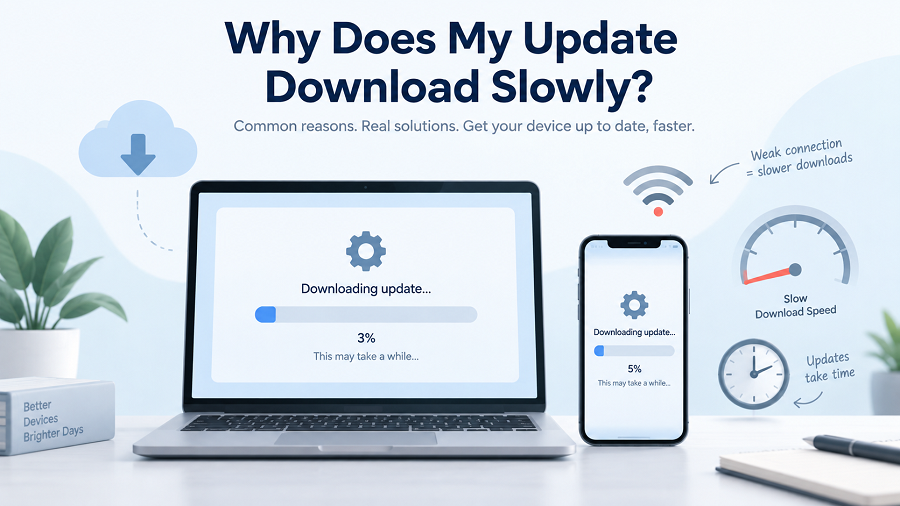
A slow update download does not always mean there is an error.
Possible reasons include:
- Large update size
- Slow Wi-Fi
- Network congestion
- Background downloads
- Server traffic
To improve speed:
- Use a faster Wi-Fi connection.
- Close unnecessary apps.
- Avoid public networks.
- Connect your device to power.
Common Update Problems and Solutions
| Update stuck at 0% | Restart and check connection |
| Update shows error message | Run troubleshooting tools |
| Download stops repeatedly | Check network stability |
| Not enough space | Delete unnecessary files |
| App update fails | Clear cache and restart |
| System update unavailable | Check device compatibility |
When Should You Contact Support?
Most update problems can be solved at home. However, professional support may be necessary if:
- The device crashes during updates.
- The update repeatedly fails with the same error.
- Important system files are damaged.
- Hardware problems are suspected.
Before contacting support, note:
- Device model
- Operating system version
- Error message
- Steps you already tried
This information helps support teams diagnose the issue faster.
Frequently Asked Questions (FAQs)
Why is my update not downloading?
Your update may not download due to poor internet connection, insufficient storage, software errors, incorrect settings, or temporary server issues.
Why is my update stuck at 0%?
An update stuck at 0% usually means the download process cannot connect properly. Restart your device, check your internet, and try again.
Does restarting fix update problems?
Yes, restarting can fix temporary software problems by refreshing system services and connections.
Can low storage stop updates?
Yes. Many updates need additional space to download temporary files before installation.
Should I delete the update files?
Only delete update files if you understand your device settings. For many users, using built-in troubleshooting tools is safer.
Why does my app update keep failing?
App updates may fail due to network issues, storage limitations, outdated app store settings, or corrupted cache files.
Final Thoughts
When you ask, “why my update is not downloading,” the cause is usually something simple: internet problems, storage limits, temporary software issues, or incorrect settings.
Most update failures can be fixed without advanced technical knowledge. Keeping your device updated ensures better security, improved performance, and access to the latest features.